Introduction
This frontend component is responsible for admin user of the system to control multiple things.
All Apps
On the main page, user can see all currently registered apps in the system.
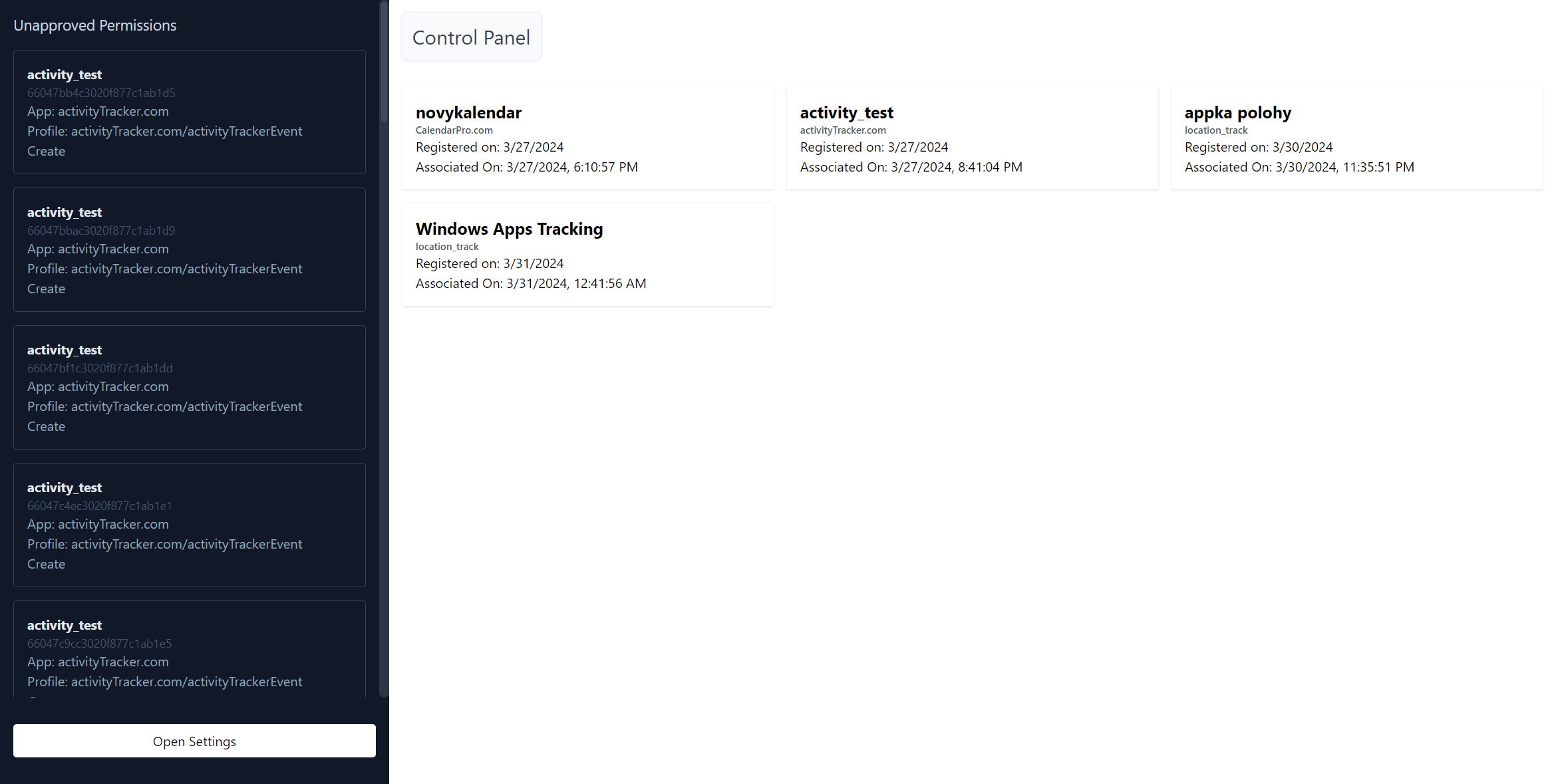
These blocks are basically App Holders. Each App Holder can be thought of as some dedicated place for the new app in the system. The app needs to be associated with its App Holder. As we can see on the picture below, gardeningPro App Holder has not been associated yet.

Creating New App
To create new app, all the user needs to do is to type the App Holder name. This needs to be unique in the system.
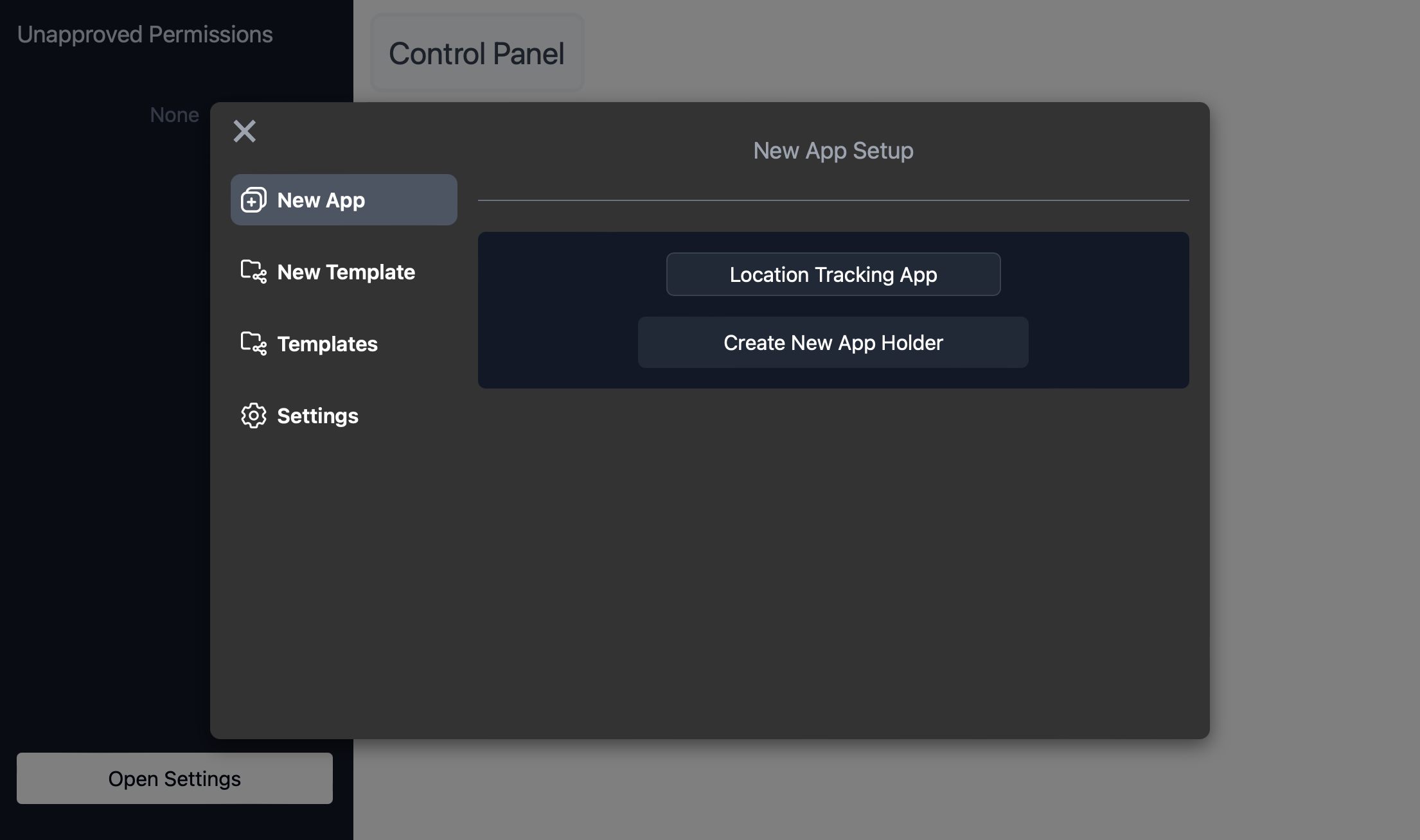
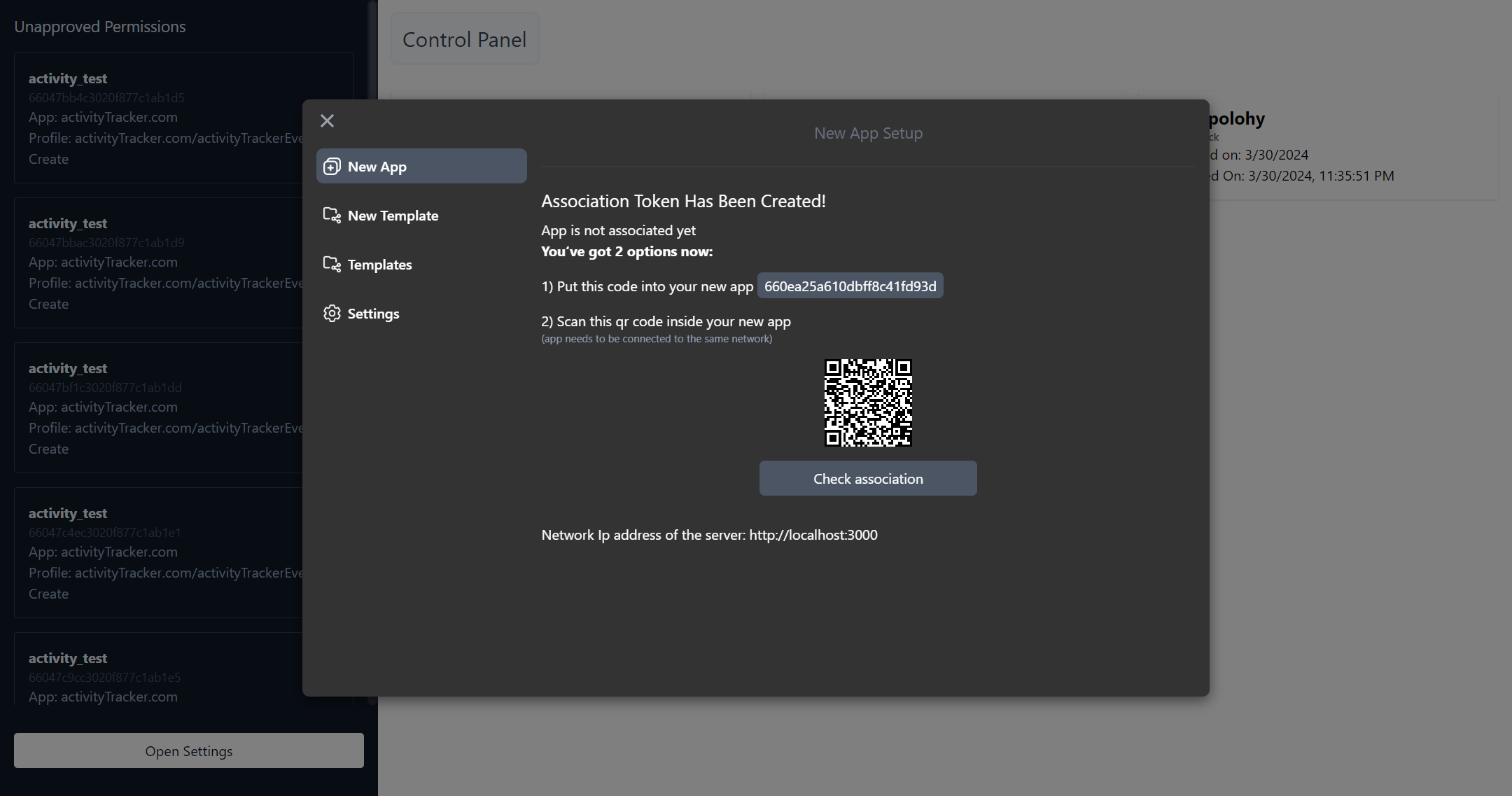
After the App Holder is created, it needs to be associated as already mentioned. Control Centre allows the app to be associated using the qr code or copying the code into the new app.
Creating New Template
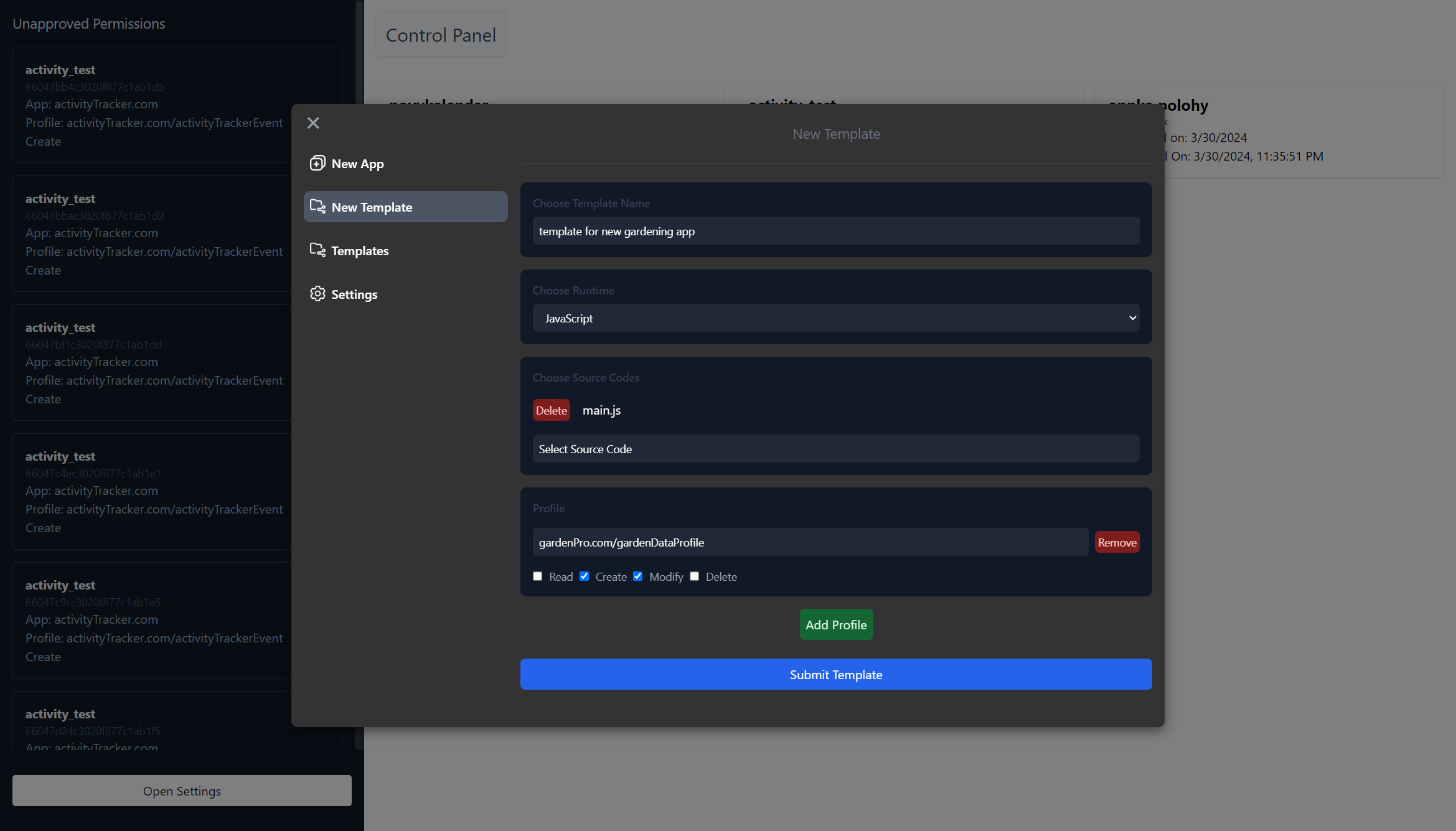
To create the new template, user fills in all necessary information as instructed in View Manager section.
Viewing All Templates
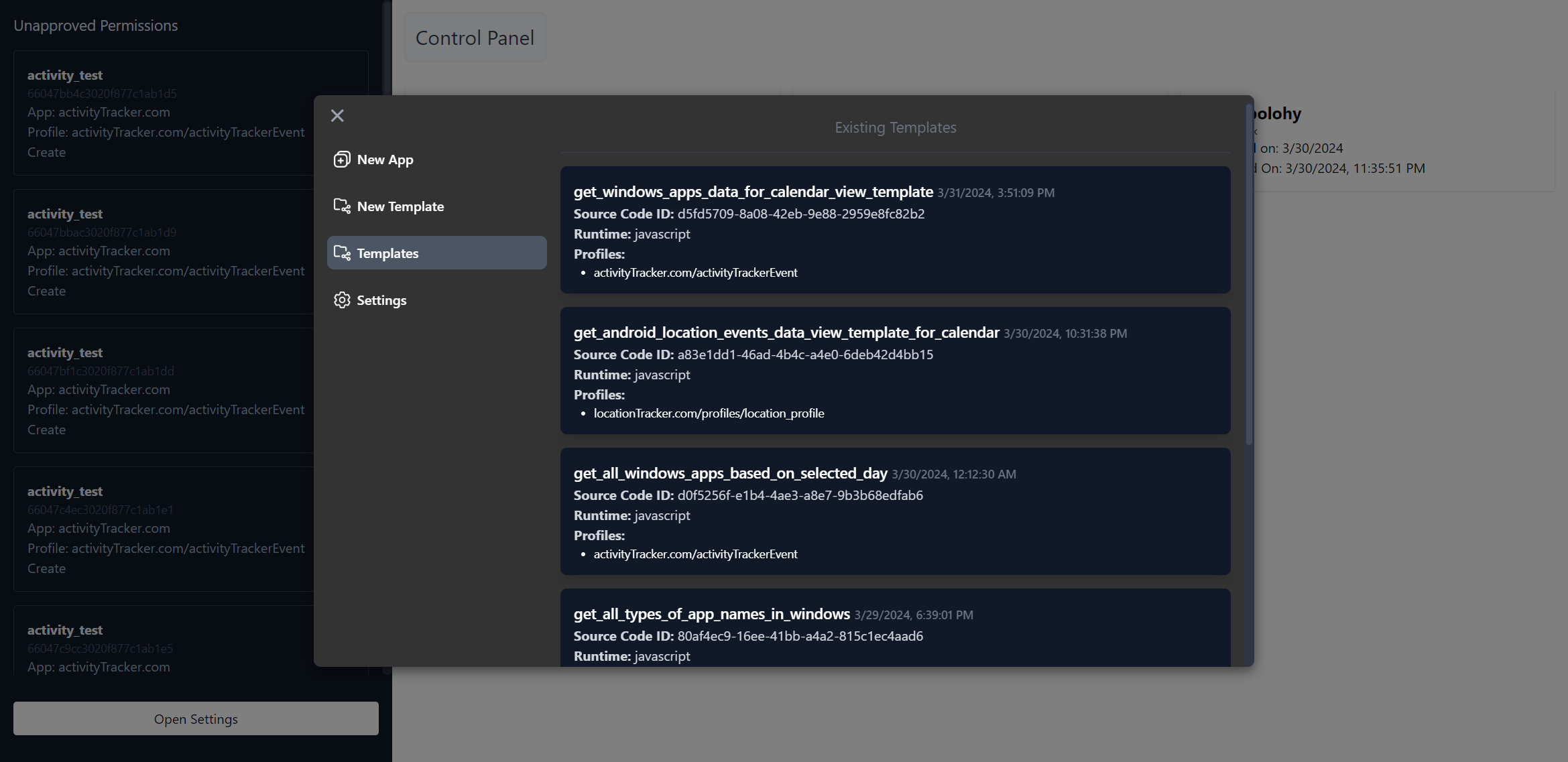
Once the new template is successfully created, it is visible under Templates in the Control Centre Settings.
Viewing Details of a Given App (Holder)
When the user clicks on any of the templates, the given template's details screen loads up.
This page contains information about the app itself, about its permissions and the app's registered Views.
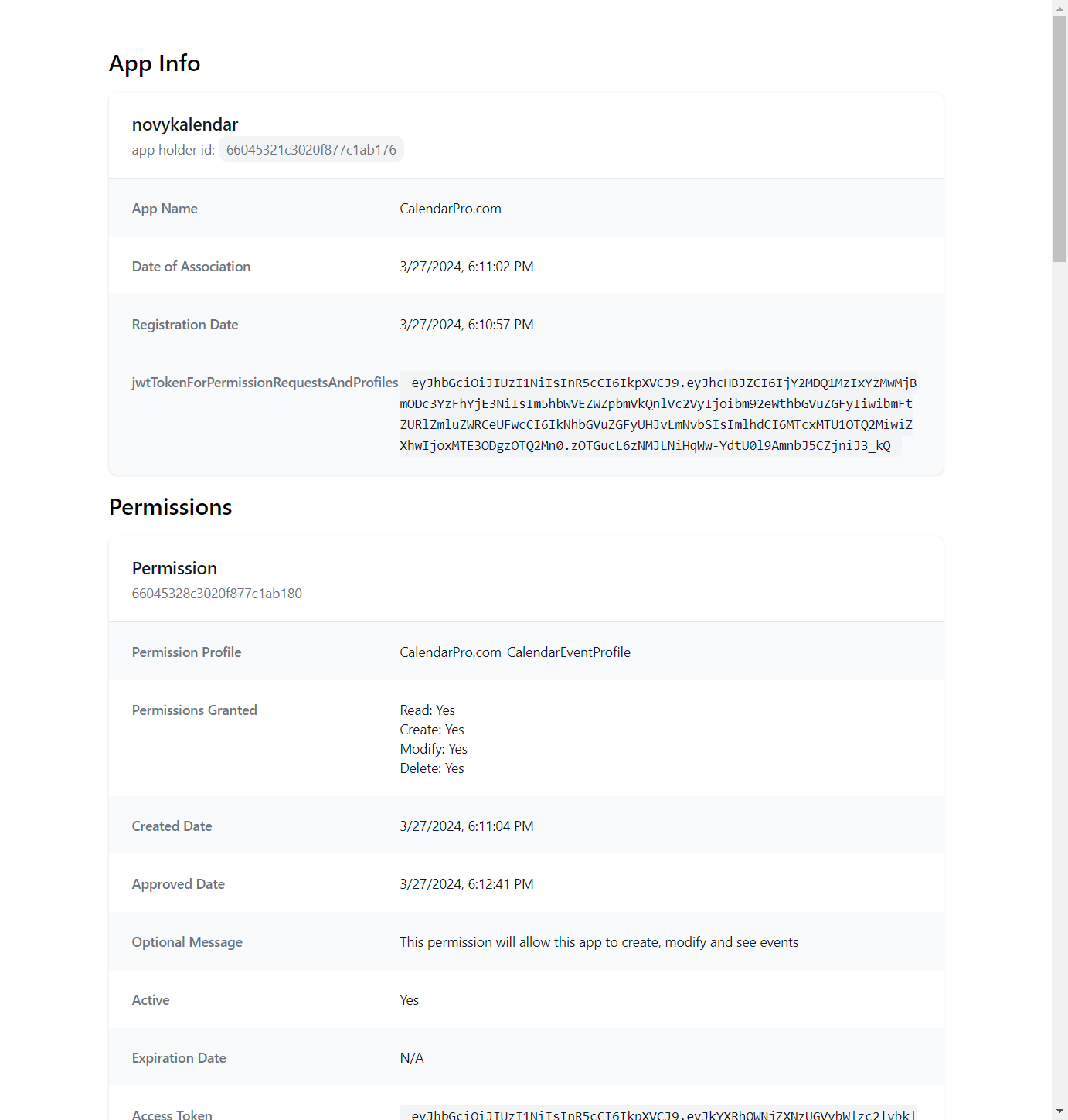
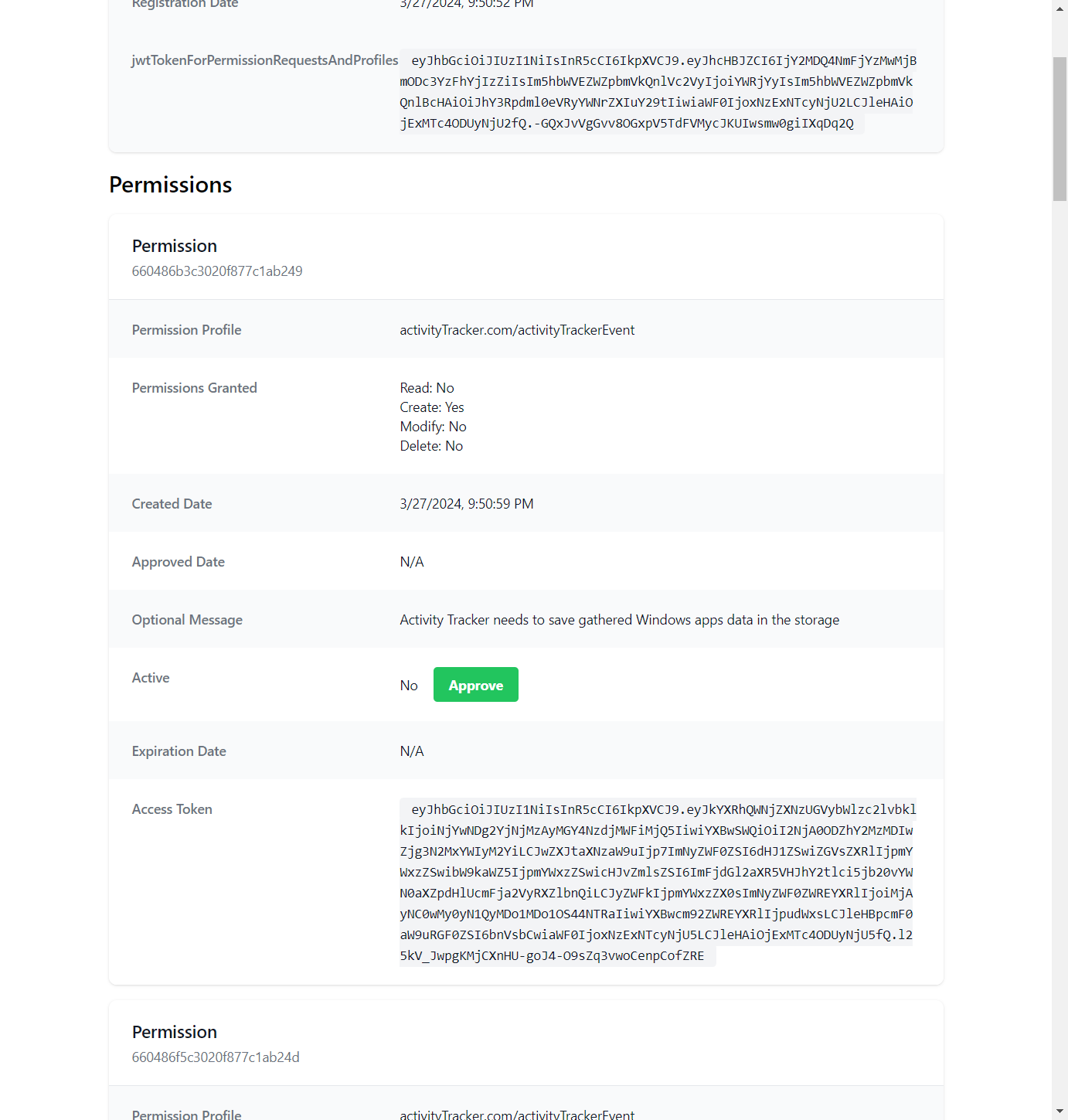
Unapproved permission has a visible green button instructing the user to approve it.
At the bottom of the page, the user can see all *View Instances Accesses.
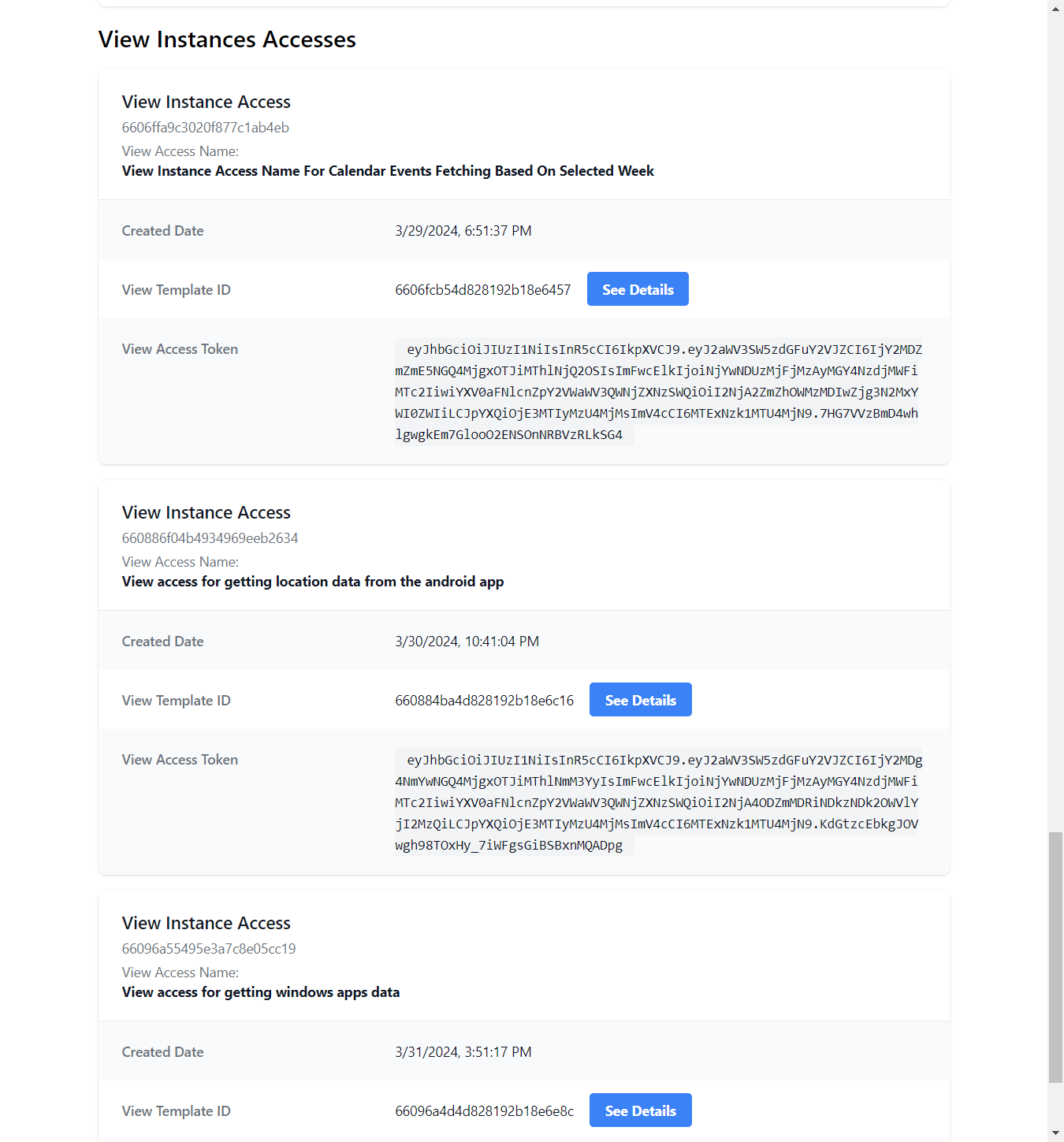
As you can see, each View Instance Access has a View Template ID. After clicking on it, user can see details of that selected template.
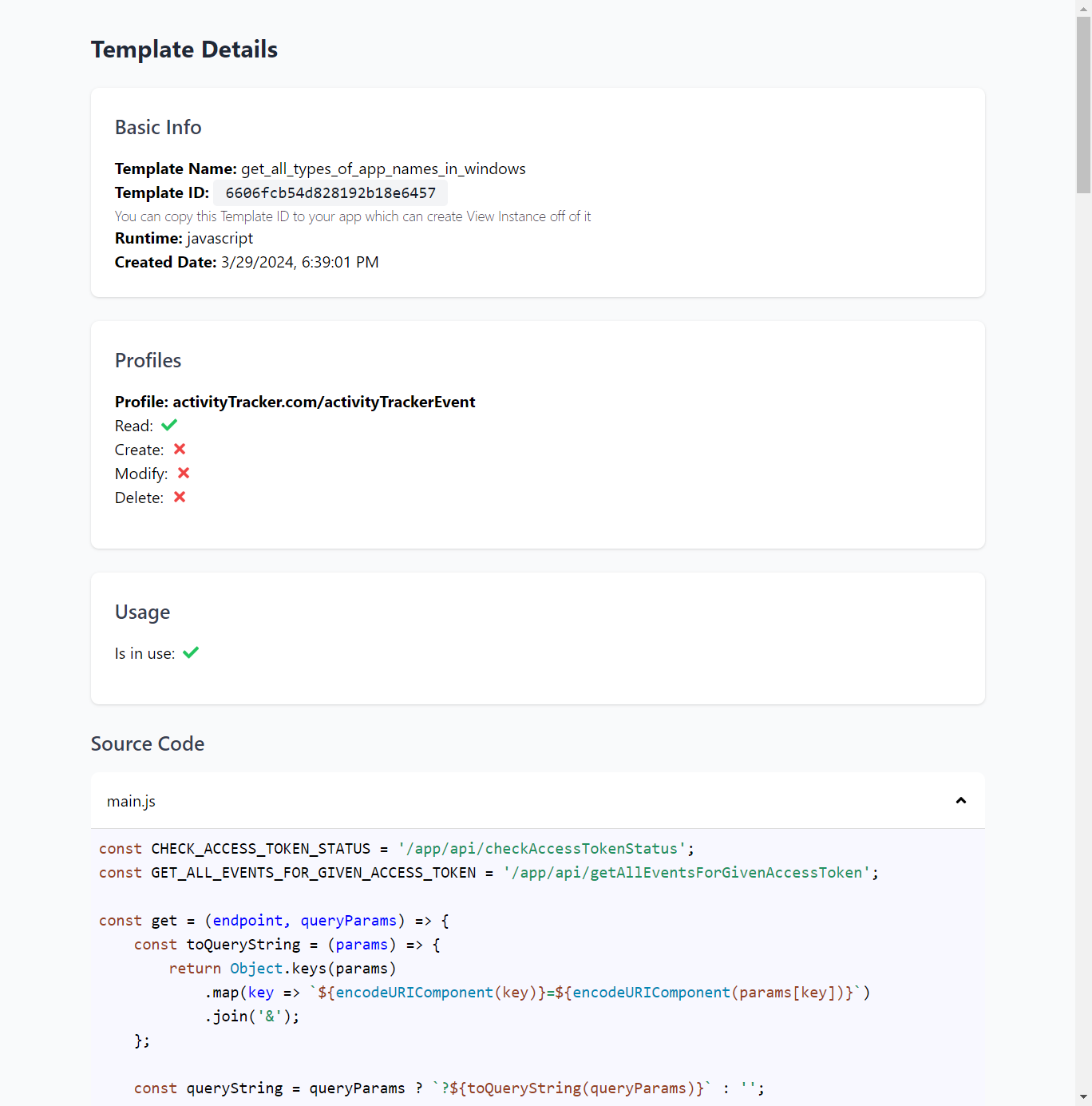
Viewing Details of a Given Template
User can view all details for a given template, including all source codes having been registerd.
And that was the gist of the Control Centre frontend component!