Activity Tracker App
Introduction
This Windows Activity Tracker App was programmed in C++ programmig language and is primarily targeted at Windows Operating System. It consists of GUI and tracking related business logic using Windows specific APIs.
We chose wxWidgets for writing the UI part. wxWidgets is an open-source, cross-platform graphical user interface toolkit that allows developers to create applications with native look and feel on Windows, macOS, Linux, and other operating systems using C++.
Even though the GUI could possibly run on other systems than Windows, it's the heavy use of Windows specific things that restricts the use of this application elsewhere.
As for the functionality, this is the current set of features:
Being able to run in the background without a visible window and no icon in the taskbar
When the application starts, it shows a GUI window containing various screens. User can start different services (which we will talk about later) and then close the app by either clicking on the native minimise button or even a close button. When either of those buttons is clicked, the application hides the main GUI window, including the icon with a title in the task bar and moves to the system tray. It's only in the system tray where the user can bring the main UI back from. User also receives one-time popup alert explaining where to find this hidden app.
Application is therefore able to run silently, not disturbing the user at all.
Gathering Windows Apps Info
Windows Activity Tracker periodically gathers data about each individual running visible window app (excludes non-GUI applications).
This set of applications data is then transformed into JSON and stored as a json file in predefined directory. This directory is chosen in the settings screen. User can set periodicity of this information gathering and start the gathering thread from the home screen of the app.
This is what such a json file looks like:
[
    {
        "metadata": {
            "createdDate": "2024-04-16T17:50:48.486Z",
            "profile": "activityTracker.com/activityTrackerEvent"
        },
        "payload": {
            "dimensions": {
                "bottom": -31972,
                "left": -32000,
                "right": -31840,
                "top": -32000
            },
            "exeName": "C:\\Program Files\\Microsoft Visual Studio\\2022\\Enterprise\\Common7\\IDE\\devenv.exe",
            "isMinimised": true,
            "memoryUsageInBytes": "852729856",
            "moduleName": "devenv.exe",
            "processId": "3435973836",
            "title": "activityTracker (Running) - Microsoft Visual Studio"
        }
    },
    {
        "metadata": {
            "createdDate": "2024-04-16T17:50:48.486Z",
            "profile": "activityTracker.com/activityTrackerEvent"
        },
        "payload": {
            "dimensions": {
                "bottom": -31972,
                "left": -32000,
                "right": -31840,
                "top": -32000
            },
            "exeName": "C:\\Windows\\explorer.exe",
            "isMinimised": true,
            "memoryUsageInBytes": "411336704",
            "moduleName": "Explorer.EXE",
            "processId": "3435973836",
            "title": "2024-04-16_T17-45-31.757Z"
        }
    },
    {
        "metadata": {
            "createdDate": "2024-04-16T17:50:48.486Z",
            "profile": "activityTracker.com/activityTrackerEvent"
        },
        "payload": {
            "dimensions": {
                "bottom": -31972,
                "left": -32000,
                "right": -31840,
                "top": -32000
            },
            "exeName": "C:\\Program Files (x86)\\Microsoft Office\\root\\Office16\\OUTLOOK.EXE",
            "isMinimised": true,
            "memoryUsageInBytes": "232927232",
            "moduleName": "OUTLOOK.EXE",
            "processId": "3435973836",
            "title": "Sent Items - stefanecmarek@icloud.com - Outlook"
        }
    },
    {
        "metadata": {
            "createdDate": "2024-04-16T17:50:48.486Z",
            "profile": "activityTracker.com/activityTrackerEvent"
        },
        "payload": {
            "dimensions": {
                "bottom": -31972,
                "left": -32000,
                "right": -31840,
                "top": -32000
            },
            "exeName": "C:\\Program Files (x86)\\Google\\Chrome\\Application\\chrome.exe",
            "isMinimised": true,
            "memoryUsageInBytes": "505491456",
            "moduleName": "",
            "processId": "3435973836",
            "title": "Alza.sk - Google Chrome"
        }
    },
]
Windows Activity Tracker also tries to synchronise this data with the main storage system. That's why the app also contains logic for associating itself with the storage system, including creating new profiles, requesting permissions and individual events uploading.
Profile For Main Storage System
{
  "title": "WindowsActivityTrackingEvent",
  "type": "object",
  "properties": {
    "processId": {
      "type": "string",
      "description": "Unique identifier for the windows process."
    },
    "title": {
      "type": "string",
      "description": "Name of the running process"
    },
    "exeName": {
      "type": "string",
      "description": "The end time of the event."
    },
    "memoryUsageInBytes": {
      "type": "string",
      "description": "Amount of memory process takes in bytes."
    },
    "isMinimised": {
      "type": "boolean",
      "description": "Whether the app is minimised in the taskbar or on desktop."
    },
    "moduleName": {
      "type": "string",
      "description": "Name of the module (oftentimes it's the exe name without the path)."
    },
    "dimensions": {
      "type": "object",
      "properties": {
        "top": {
          "type": "number"
        },
        "left": {
          "type": "number"
        },
        "right": {
          "type": "number"
        },
        "bottom": {
          "type": "number"
        }
      },
      "required": [
        "top",
        "left",
        "right",
        "bottom"
      ]
    }
  },
  "required": [
    "processId",
    "title",
    "exeName",
    "memoryUsageInBytes",
    "isMinimised",
    "moduleName",
    "dimensions"
  ],
  "additionalProperties": false
}
For getting this data, we primarily depend on windows.h and psapi.h libraries.
The EnumWindows function from windows.h is a cornerstone of this application, as it allows us to enumerate through all open windows and collect information such as window titles, class names, dimensions, and state (minimized or not). This function calls the EnumWindowsProc callback which captures detailed attributes for each window including process ID, executable name, and memory usage—attributes that are crucial for analyzing the applications running on a system.
The psapi.h library's functions like GetProcessMemoryInfo and GetModuleFileNameEx are used to enrich the information captured by retrieving the memory usage statistics of the given process and the executable path of the application running in the window.
Gathering Screenshots
The application takes screenshots of all currently connected active monitors. It detects them, adjusts picture properties for them and takes screenshots. Eaching screenshotting moment is then stored in a new directory named according to the current time and consisting of all pictures of monitors. Directory for these screenshots is as well selected in the app's settings page.
These screenshots are currently not synced.
For taking screenshots, we created a Screenshots Manager. This depends on windows.h and gdiplus.h libraries.
gdiplus.h is part of the GDI+ library, an enhancement over the older GDI framework, providing more complex two-dimensional graphics and imaging capabilities. This library is crucial for handling the images captured from the screen. It supports operations like loading, saving, processing, and manipulating images in various formats. In our application, GDI+ functions are used to save the captured bitmap images into desired formats using specific codecs. Functions such as Gdiplus::Bitmap::Save and Gdiplus::GetImageEncoders are used for managing image files, enabling the application to handle image data efficiently and with high fidelity.
In the screenshot management functionality, windows.h and gdiplus.h work in tandem to perform the task of capturing and saving screenshots:
Screen Capture with windows.h:
-
GetDCfunction retrieves a handle to a device context for the entire screen, which represents a drawing surface for the Windows display. -
CreateCompatibleDCandCreateCompatibleBitmapcreate a memory device context and bitmap that are compatible with the screen. This is where the screenshot will be drawn. -
BitBlttransfers the bitmap data from the screen's device context to the bitmap stored in memory, effectively capturing the screenshot. Image Saving with gdiplus.h: -
Upon capturing the bitmap,
GDI+is utilized to convert and save this bitmap into a file. TheGdiplus::Bitmapobject represents the image in memory. Encoder CLSIDs (Class Identifiers) are retrieved using GetImageEncoders, which are necessary for specifying the format in which the image should be saved (e.g., JPEG, PNG). The Save method of theGdiplus::Bitmapclass is used to write the image file to disk in the desired format, utilizing the previously obtained encoder.
Logging Key Presses
This feature heavily depends on the app's ability to hide itself. That's because this logging of key presses on the user's keyboard is handled by another thread and the logging works even when the apps is not focused, nor shown. In other words, any key press anywhere in the system is registered and saved in the file. When the user starts this key presses logging a new file is created for this session and stored in a predefined directory (selected in the settings). Inside this directory, another directory called keypresses gets created where these files are stored.
This functionality depends again on windows.h library.
SetWindowsHookEx: This function installs an application-defined hook procedure into a hook chain. In our code, it's used to install a low-level keyboard hook (WH_KEYBOARD_LL) that monitors keystroke messages.- The callback function
lowLevelKeyboardPressCallbackdefined is registered and gets called by the Windows system every time a keyboard event occurs. It checks whether the event should be processed (nCode == HC_ACTION) and logs key presses based on whether the Ctrl or Shift key is held down along with another key. UnhookWindowsHookEx: This function removes a previously installed hook procedure from a hook chain. It is used to deactivate the keyboard hook when it is no longer needed, ensuring that the application cleans up its resources correctly.
Gathering Network Info
This part of the app allows scanning and retrieving the SSIDs of available WLAN networks.
There are several key libraries integral to this functionality:
Wlanapi.hThis header file is part of the Windows Native Wi-Fi API, which provides functions to interact with WLAN (Wireless Local Area Network) interfaces.Windows.h
From Wlanapi.h we use the following functions:
- WlanOpenHandle(): Opens a client handle to the WLAN service, which is required for other WLAN operations.
- WlanEnumInterfaces(): Enumerates all WLAN interfaces on the device, providing information about each interface.
- WlanGetAvailableNetworkList(): Retrieves a list of available networks for a specific WLAN interface.
- WlanFreeMemory(): Frees memory that was allocated by WLAN API functions like
WlanEnumInterfacesandWlanGetAvailableNetworkList. - WlanCloseHandle(): Closes the handle obtained by
WlanOpenHandleonce WLAN operations are complete.
These functions are specifically designed for managing and retrieving information about wireless network interfaces and networks available to these interfaces. They enable applications to interact with the hardware's wireless capabilities at a system level.
Automatic Startup During Startup of the Windows OS
Application has the ability to register itself among the list of apps which are started during the startup of the operating system. This can be turned off in the app's settings.
Walkthrough
Initial Setup Page
This screen is meant for setting up with the main storage system. That's because as we already mentioned, the app synchronises the windows apps info data. We don't cover here all steps of association with the storage system - for more details, look at association of Location Tracker app and for general understanding of association, please consult documentation for the main data storage system located here.
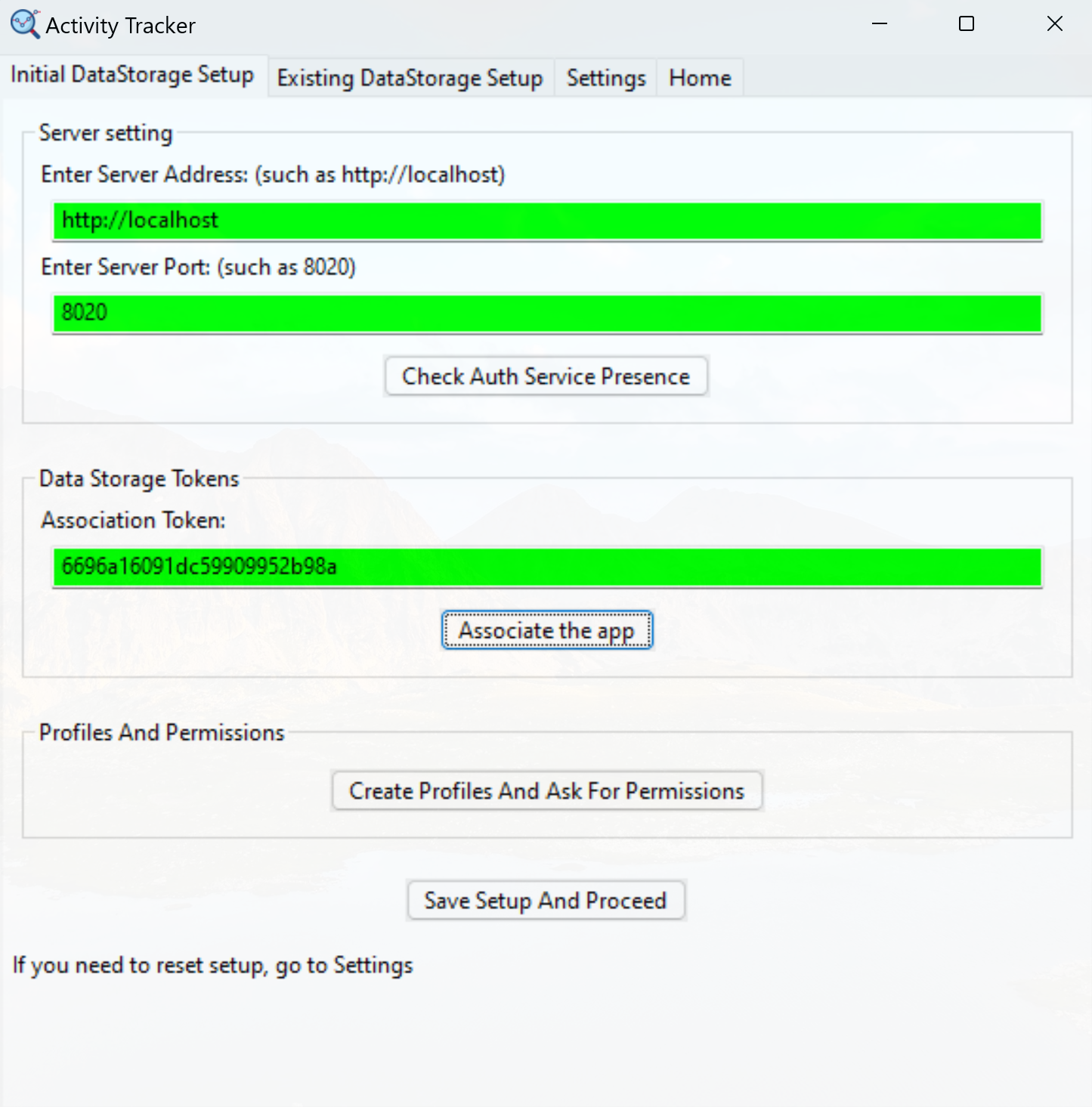
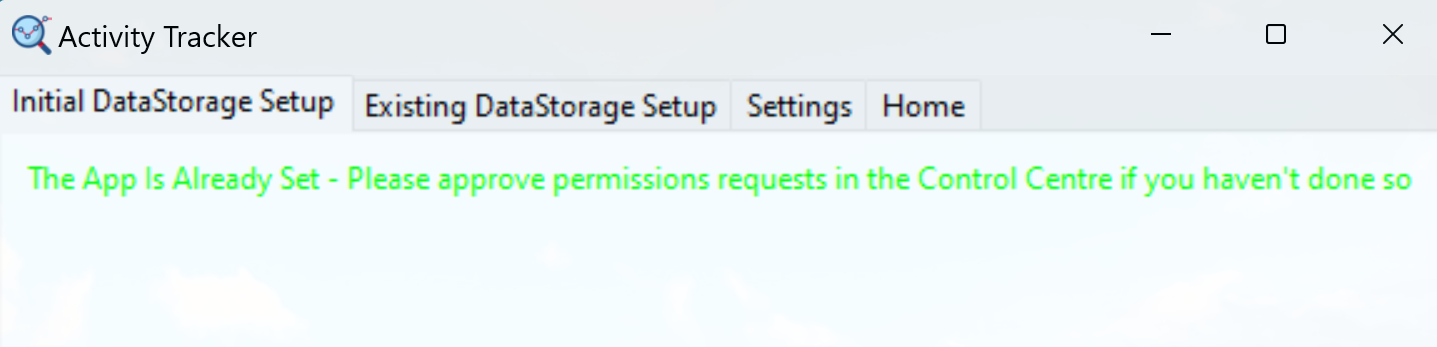
Input becomes green, when it's been checked and it's correct. When the setup is successfull, these inputs disappear and the information about the app being setup is displayed.
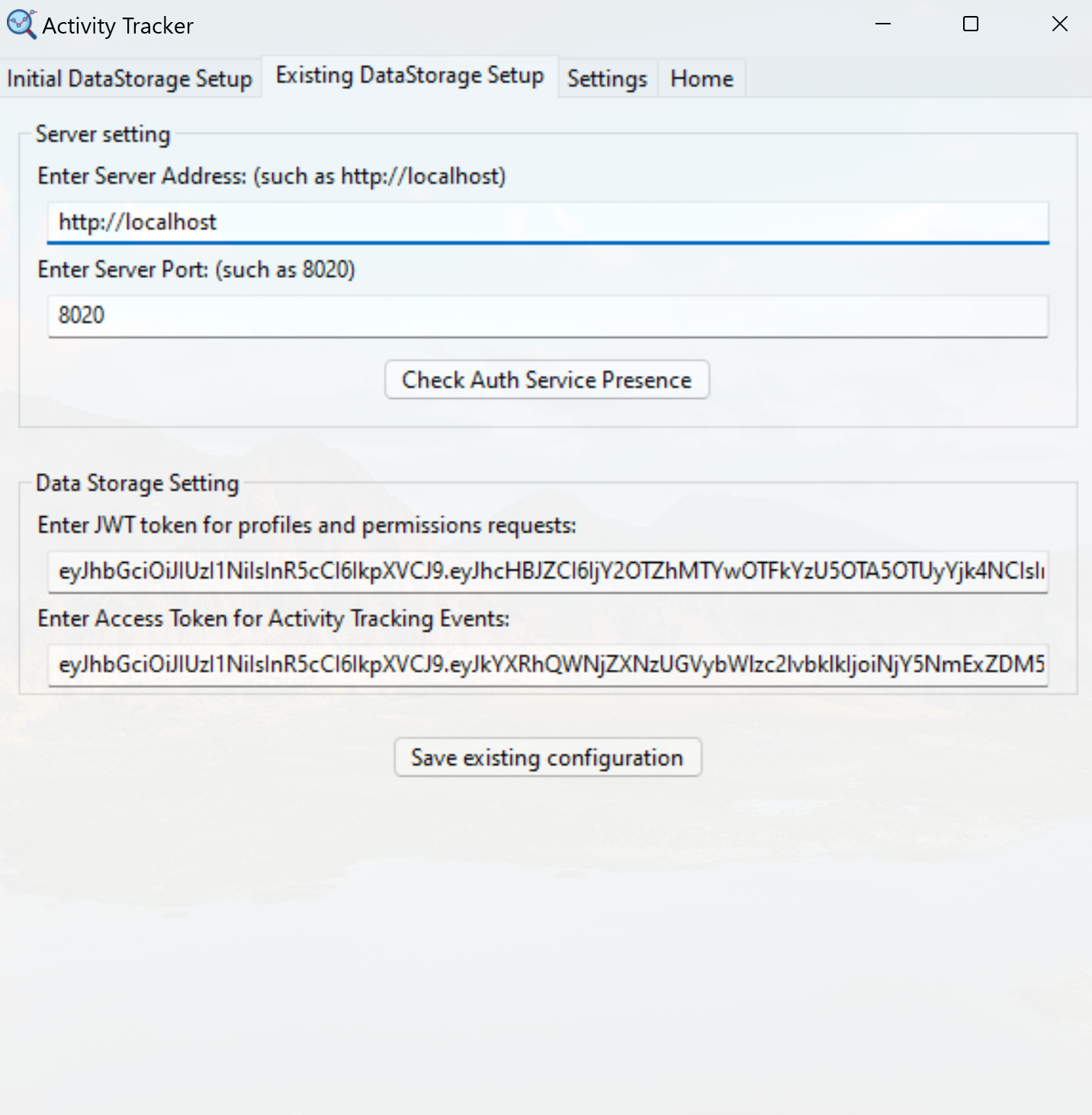
Existing Setup Page
If there exists some already existing setup in the main storage system, the user can just copy proper tokens and paste them here.
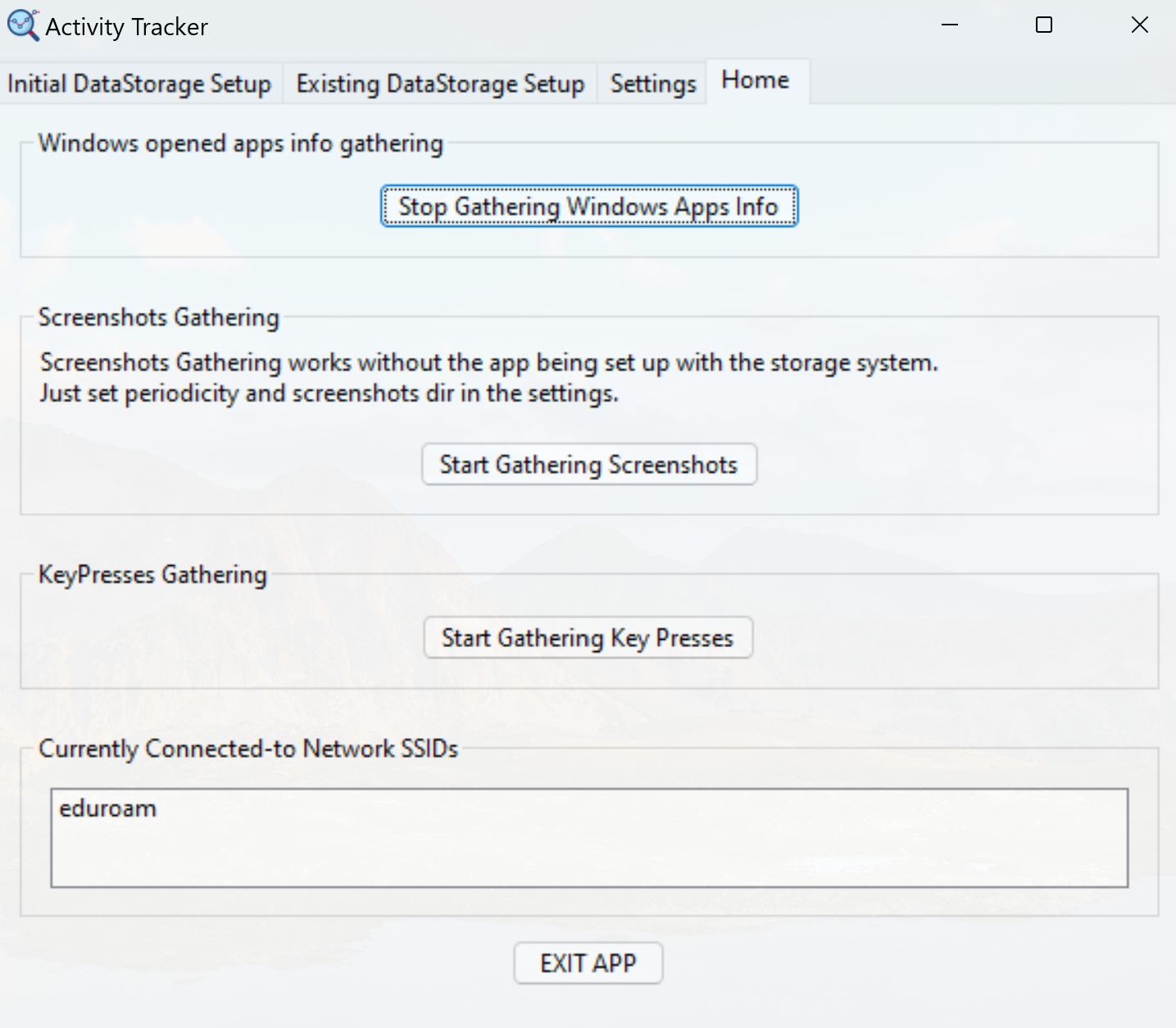
Home Page
This is the place where magic happens - user can start all aforementioned features here.
Also, as you can see, currently connected to network SSIDs are shown.
Settings Page
This is the page where the user can set the directory where all data will be stored - including the windows apps info, screenshots and key presses. All this data won't be mixed up though - everything will be neatly placed in nested directories.
Periodicity (in seconds) can be set for taking screenshots and windows apps info gathering.
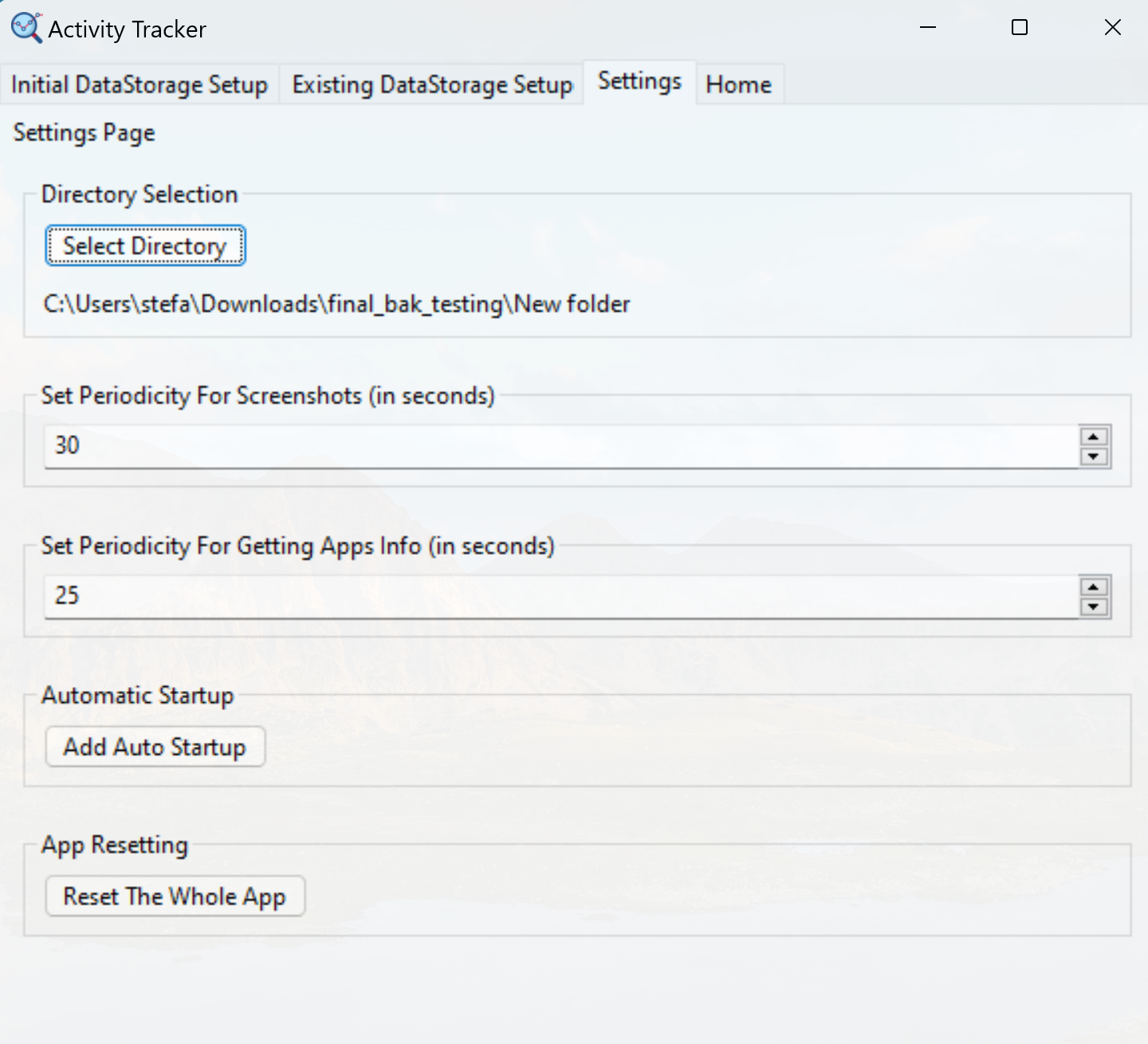
Last, but not least, the app can be reset from this place.